

Document templates
A document template is a page layout designed once and filled with data many times. Its pages hold text, images, shapes and lists, exactly placed; some of them are fields that change with every document — a title, a price, a photo, a list of products. Give the template a set of values and Madoo renders the finished document as a PDF (print-ready if needed) or as page images.
Templates are what turns the output of a workflow into something a customer can read: the AI writes the copy, a catalog provides the facts, a photo is cut out and placed in a setting — and the template puts all of it on the page, the same way every time.
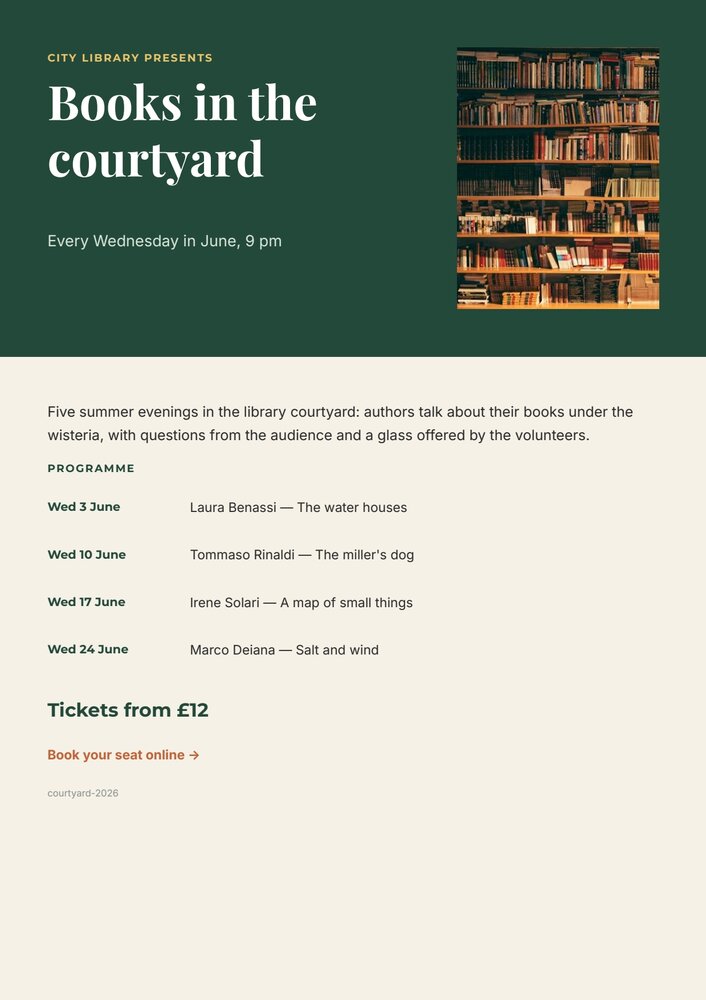
The reference template used throughout this guide: event poster. Every text in the band, the photo, the introduction, each programme row, the price and the event reference are fields.
How it works
Section titled “How it works”- Design the template. Pages, a background, text and image elements, shapes, lists. Some elements are bound
to fields, each with a code (
title,photo,price,speakers) and a type. - Exercise it with sample data. A template carries sample sets — realistic values for its fields — and an exact preview shows each of them as it will print. A readiness check tells whether it can be published.
- Publish it. Publishing freezes the design as a numbered revision (1, 2, 3…) that never changes. The draft stays editable; publishing again makes the next revision.
- Fill it. Directly (render a revision with a JSON object of values) or, far more often, from a workflow: the data comes from inputs, AI steps, datasets or lists, and a template node renders one document per run or one page set per item.
Templates and workflows
Section titled “Templates and workflows”Three workflow nodes use templates. Pick by what you need to produce:
| You need | Node |
|---|---|
| One document per run, with structured data, page images, a layout report or print-ready PDF/X-4 | Render Document Template (design/template_render) |
| One PDF per run, with each field connected as its own input port | Generate PDF (document/pdf) |
| One PDF with a page set per item of a list (a catalog, one certificate per participant), optionally with a cover | Multi-page PDF (aggregate/pdf) |
They are explained, with the patterns that make them reliable, in Templates in workflows. A workflow can also produce several documents from one template, or use two templates — a cover and an inner page — in one PDF.
Three ways to author a template
Section titled “Three ways to author a template”A template is one JSON document in the format madoo.design-document/2.0. Every way of working edits that same
document, and every save is validated by the same rules — so a template started in one way can be continued in
another.
- In the visual editor. Draw pages, place texts, images and shapes, turn elements into fields, and see the result as you go. This is how people usually work, and every technique page of this guide says where each command is in the editor.
- By writing the whole document — the way for agents and integrations to create a new template or redesign
one. Plan the page, then create the template from the complete document (
create_design_template_draftwithcontent, orPOST /api/v1/design-templateswithcontent) and refine it withreplace_design_template_content. The whole composition is decided at once, not assembled piece by piece. - With the element tools — add a text, move an image, change a color, configure a field — for small changes where the rest of the document must stay untouched.
Whichever way, look at the result: preview a sample set, read the page, fix what does not look right, repeat. A template is a piece of design, and it is judged by its pages.
Where to go
Section titled “Where to go”| Your task | Read |
|---|---|
| Understand pages, masters, elements and the JSON document | The document model |
| Decide the fields and the data a template receives | Fields and data |
| Design a template that looks professional, not just correct | Designing a template |
| Connect a template to a workflow: nodes, data, AI copy, one PDF per item or per list | Templates in workflows |
| Test, publish, revise and share a template | The template lifecycle |
| Fix a rejected document, a failed render or a wrong page | Troubleshooting |
| Style text, choose fonts, mix formats, fit long values | Text |
| Place photos and logos, crop into shapes, put text on photos, page backgrounds | Images |
| Keep blocks of variable length evenly spaced, cards that wrap their content, rows and grids | Flowing layouts |
| Show a variable number of things: menus, products, line items, catalogues over several pages | Repeated lists |
| Adapt one template to its data: badges, optional blocks, brand colours, markets, links | Conditions, links and formats |
| Brochures and catalogues: master pages, page numbers, covers, pages that follow their content | Multi-page documents |
| Bands, cards, dividers, arrows, gradients, SVG logos and their colours | Vector shapes and SVG |
| Keep typography consistent, restyle quickly, reuse chips and badges | Styles and components |
| Send a document to a printer: PDF/X-4 and ICC profiles | Print-ready PDF |
| Integrate templates through REST or MCP (endpoints, parameters, errors) | Design templates API |
Complete, installable examples — proposals, brochures, flyers, price lists, listings, posters, certificates — are in the Examples gallery.