

Text
Text carries most of what a document says: the title, the price, the description, the legal note. This page covers the text element from the simplest label to a paragraph with mixed formatting that receives its value from data. Each technique is explained once, then shown twice: in the editor (what to click) and in the document (the JSON, for agents and integrations). The two are the same thing — the editor saves exactly the document shown.
All the examples on this page are collected in the text lab, a one-page template that shows every technique side by side.
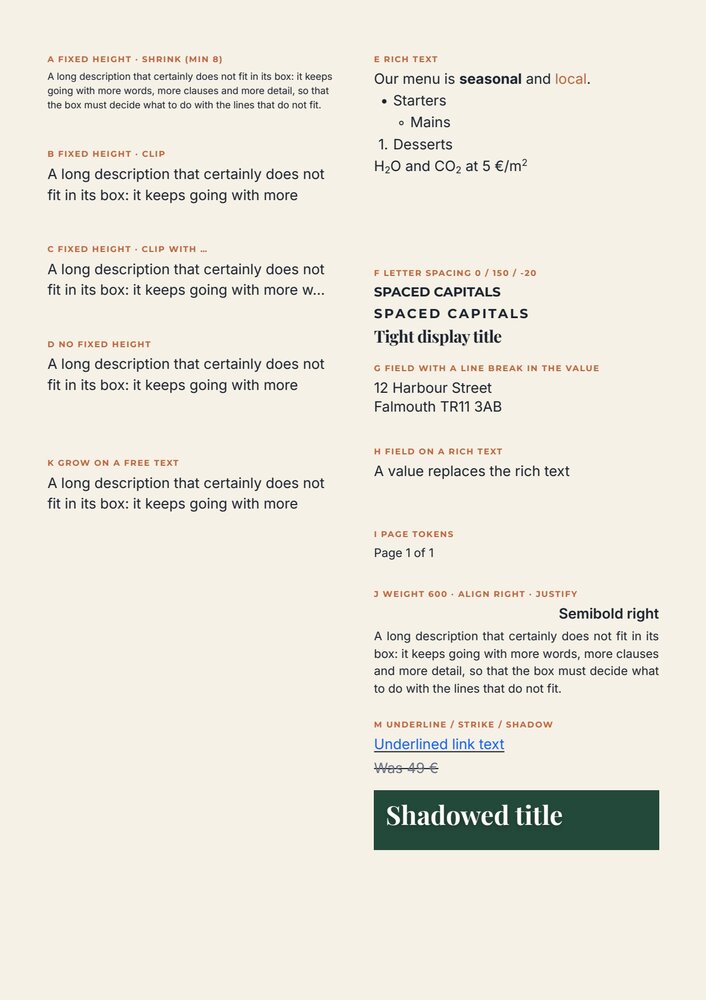
The text box
Section titled “The text box”A text element is a box: left, top, width and height in points. The text wraps at the box’s width, and
the box’s height is the limit of what prints. A value longer than the box does not spill onto the page: it is
cut, shrunk or grown according to rules you choose (see When the text is longer than its box).
| Property | What it does | Default |
|---|---|---|
text |
The text itself; \n starts a new line |
— |
fontFamily, fontWeight, fontStyle |
The font: family name, normal/bold or a number 100–900, normal/italic |
Roboto, normal, normal |
fontSize |
Size in points | 16 |
fill |
Color, #RRGGBB |
#000000 |
textAlign |
left, center, right, justify |
left |
lineHeight |
Distance between lines as a multiple of the size (1.3 = 130%) | 1.16 |
charSpacing |
Letter spacing in thousandths of an em: 100 adds a tenth of the size between letters; negative tightens |
0 |
underline, linethrough |
Decorations | false |
shadows |
Drop shadows: color, opacity, offset, blur | none |
In the document
{ "$type": "text", "id": "5c0de000-0000-4000-8000-000000000031", "name": "Intro", "left": 40, "top": 330, "width": 330, "height": 90, "text": "Five summer evenings in the library courtyard.", "fontFamily": "Inter", "fontSize": 12, "fill": "#1c2430", "lineHeight": 1.4 }In the editor
Choose Add text in the tool bar on the left and click on the page. With the text selected, the bar above the page shows the text controls: font, size, Bold, Italic, Underline, Strikethrough, the four alignments, bulleted and numbered lists and the text color. Line height, letter spacing and weights other than regular and bold are set through a text style (see Fonts and weights).
While you type static text in the editor, the box grows to hold it. A value that arrives from data at render time does not move the box: it follows the rules below.
Fonts and weights
Section titled “Fonts and weights”A font must exist in the workspace: one of the 31 built-in families (Inter, Montserrat, Playfair Display, Roboto…) or a font the workspace has uploaded. List them with list_fonts (MCP) or GET /api/v1/fonts (REST) — each family comes with
its available weights and styles, workspace fonts first.
- Name the family exactly as the list spells it (
Playfair Display, notPlayfairDisplayorPlayfair). An unknown family is not rejected: the text prints in a substitute font. Check the preview. - Weights:
normal(400) andbold(700) exist for most families; many families also have light (300), medium (500), semibold (600) or black (900). Write the number:"fontWeight": "600". When a family does not have the weight you ask for, the closest one it has prints — a semibold becomes bold, a light becomes regular. - Italic needs an italic file in the family; without it the upright style prints.
- Every character must exist in the font. A glyph the font lacks does not print. Check symbols such as →, €, ², ✓ and non-Latin text in a preview.
- A text can pin an exact font revision with a
fontreference (the objectlist_fontsreturns). The editor always writes it; in a document you write, family and weight are enough.
In the editor
The font picker in the text bar lists the workspace’s families. Bold and Italic are enabled only when the family has that variant. For other weights, and for line height and letter spacing, open the Styles panel on the right, add a text style, choose its Weight, Line height and Character spacing, and apply it to the text. A style keeps the same typography consistent across the template; styles have their own page.
Mixed formatting and lists
Section titled “Mixed formatting and lists”One text can mix formats — a bold word, a colored word, a subscript, a bulleted list — through rich text: paragraphs made of runs, where each run overrides only what changes.
{ "$type": "text", "id": "5c0de000-0000-4000-8000-000000000032", "name": "Menu intro", "left": 315, "top": 60, "width": 240, "height": 150, "fontFamily": "Inter", "fontSize": 12, "fill": "#1c2430", "lineHeight": 1.35, "text": "Our menu is seasonal and local.\nStarters\nMains\nDesserts\nH2O and CO2 at 5 €/m2", "richText": { "schema": "madoo.rich-text/v1", "paragraphs": [ { "runs": [ { "text": "Our menu is " }, { "text": "seasonal", "fontWeight": "bold" }, { "text": " and " }, { "text": "local", "fill": "#c0643a", "fontStyle": "italic" }, { "text": "." } ] }, { "list": { "kind": "bullet", "level": 0 }, "runs": [ { "text": "Starters" } ] }, { "list": { "kind": "bullet", "level": 1 }, "runs": [ { "text": "Mains" } ] }, { "list": { "kind": "ordered", "level": 0 }, "runs": [ { "text": "Desserts" } ] }, { "runs": [ { "text": "H" }, { "text": "2", "fontSize": 8, "baselineShift": -2 }, { "text": "O and CO" }, { "text": "2", "fontSize": 8, "baselineShift": -2 }, { "text": " at 5 €/m" }, { "text": "2", "fontSize": 8, "baselineShift": 4 } ] } ] } }- A run can change
fontFamily,fontSize,fontWeight,fontStyle,fill,underline,linethroughandbaselineShift(points, positive upwards: superscript, negative: subscript). Everything else comes from the element. textmust equal the rich text’s plain content: the runs of each paragraph joined, paragraphs separated by\n. A mismatch is rejected (DESIGN_RICH_TEXT_INVALID: The plain text projection must match the rich text content).- A paragraph with
listbecomes a list item:kindbulletorordered,level0–8 for nesting,startto restart a numbering. Markers (•, ◦, 1.) are drawn for you and are never part of the text. - A
\ninside a run is a line break within the same paragraph (the same list item); a new paragraph is a new item.
In the editor
Double-click the text to edit it, select words, and apply bold, italic, color or size from the text bar;
Ctrl+B, Ctrl+I and Ctrl+U work while typing. The list buttons turn the current paragraphs into a
bulleted or numbered list. Shift+Enter breaks the line inside a list item. Superscript, subscript and Clear
formatting are under More text properties (the … button at the end of the text bar).
A text that is a field
Section titled “A text that is a field”A text becomes a field when it carries a placeholder: its value comes from data, and the text you wrote is
the example shown in the editor. See Fields and data for field types and codes.
- The value replaces the whole text. A line break in the value (
"12 Harbour Street\nFalmouth") starts a new line. - A value is printed with the element’s own format — its font, size, color and alignment. Rich formatting written on a field’s example text does not apply to the value: a field prints in one format. To give part of a line another format, use two texts, or two fields (a bold name and a regular role).
- A
numberfield is formatted by its number format, abooleanfield prints its labels — both are texts too, and everything on this page applies to them.
In the editor
Choose Add text placeholder in the tool bar, or select an existing text and choose Make Placeholder from the
… menu of its action bar. The dialog asks for the name, the code, whether it is required, a default value and a
description. The editor calls fields placeholders; they are listed in the Fields panel on the right.
When the text is longer than its box
Section titled “When the text is longer than its box”A title that is sometimes three words and sometimes twelve, a description that varies from one line to six: the same box must serve all of them. Four behaviours are available.
| Behaviour | Where it works | What happens to a long value |
|---|---|---|
| Keep the box (default) | anywhere | The size stays; the lines that do not fit are left out |
| Fixed height, shrink | anywhere | The size decreases until the text fits, down to minFontSize; below that, lines are left out |
| Fixed height, cut with … | anywhere | The size stays; the last visible line ends with an ellipsis |
| Grow | in a flowing Layout or a repeated list row | The box takes the lines the value needs, up to maxLines; what follows moves |
| Grow, on a free text | anywhere else: on the page, in a Group, in a Layout that does not flow | The box keeps its place and height; the value may take up to maxLines lines and no more than the box holds, then beyond applies |
{ "fixedHeight": 44, "overflowMode": "shrink", "minFontSize": 8 }{ "fixedHeight": 44, "overflowMode": "clip_ellipsis" }{ "grow": { "maxLines": 2, "beyond": "shrink", "height": "content" } }fixedHeightturns the fixed-height behaviours on;overflowModeisshrink,cliporclip_ellipsis. Shrink suits titles and names; cut with … suits descriptions, where a truncated sentence is acceptable.growmakes the box follow the value where the text can push something: in a flowing Layout whose children size to their content, or directly in a repeated list row.maxLinesis 1–50;beyonddecides what happens past the limit:ellipsis,shrink, orfail, which stops the render withDESIGN_TEXT_TOO_LONGwhen cutting would be wrong (a legal note, a price condition)."height": "content"makes a short value exactly as tall as its lines, so a one-line title pulls up what follows. Withshrinkthe value keeps its limit in lines too: a smaller size never wraps it onto more lines thanmaxLines, so a name withmaxLines: 1stays on one line. A value too long even atminFontSize(6 points unless set) prints at that size within the limit, the rest left out, and the preview reports it (too long even at the minimum size). Flowing Layouts and lists have their own pages.- On a free text — directly on the page, in a Group, or in a Layout that keeps drawn sizes — there is
nothing to push, so the box keeps its place and height, and
growlimits what it prints: the value may take up tomaxLineslines and no more than the box holds, at least one. A value that needs more followsbeyond: it is shrunk or cut with … inside the box, or the render stops withDESIGN_TEXT_TOO_LONG, which says how many lines the value needs and how many the text has room for. A value that fits prints as drawn.{ "grow": { "maxLines": 1, "beyond": "shrink" } }on a one-line box is the simplest way to keep a name or a title on its line whatever its length;heighthas no effect there. The editor canvas shows the text as written; the exact preview and the PDF apply the rule to the sample or runtime value. - A preview reports every text that did not fit, with what happened to it:
DESIGN_TEXT_OVERFLOW— 5 text(s) did not fit their box: A (too long even at the minimum size, lines left out), C (cut with …)…. It is a warning, not an error: read it, and fix the box or the rule.
In the editor
The Fixed height button in the text bar (the wrap icon) turns the fixed-height behaviours on; the menu next to it chooses Shrink, Clip or Clip…, and with Shrink a number sets the minimum font size. Growing texts are set in the settings of the Layout or the list that contains them: under Texts (in a Layout) or Long texts (in a list row), tick the text, then choose Up to lines and Beyond that — Cut with …, Shrink to fit or Stop the render.
Page numbers and other page texts
Section titled “Page numbers and other page texts”A text can contain the tokens {{page}}, {{pages}} and {{sequencePages}}: they print the page number, the pages
of the document and the pages of the current numbering sequence, and they are right even when a list adds pages.
They are covered with masters and numbering sequences in the multi-page page.
In the editor
The Special fields tool adds a ready-made page text — the page number, Page 1, 1 / 12, Page 1 of 12, for the document or for the current sequence; on any text, Fields in the text bar (or Edit fields under More text properties) opens the page text editor, which inserts the tokens.
Recipes
Section titled “Recipes”| You need | Do |
|---|---|
| A small label above a title (an eyebrow) | Montserrat or another geometric sans, bold, 7–9 pt, capitals, charSpacing 100–150, accent color |
| A title that is sometimes long | Display font, fixedHeight with shrink and a minFontSize no smaller than 70% of the size — or grow with maxLines: 2 and beyond: shrink, in a Layout or on a free text drawn two lines tall |
| A description of variable length | fixedHeight with clip_ellipsis, or grow with maxLines: 6 and beyond: ellipsis in a Layout |
| An old price next to the new one | Two texts: the old one linethrough in a muted color, the new one bold in the accent |
| An address or a signature block | One text field; the data carries the line breaks (\n) |
| A legal note that must never be cut | grow with beyond: fail, in a Layout or on a free text: a note too long stops the render instead of printing incomplete |
| A tight display title | charSpacing −10 to −20 on a large serif |
| Chemical formulas, units, footnote marks | Rich text runs with a smaller fontSize and a baselineShift |
Checklist
Section titled “Checklist”- Every family is spelled as
list_fontsreturns it, and every weight exists or has a close neighbour. - Every symbol and accent prints (check the preview, not the editor).
- Every text field has a behaviour for its longest value — shrink, cut, grow or fail — chosen on purpose.
- The preview reports no
DESIGN_TEXT_OVERFLOWyou did not decide to accept. - Rich text only on static texts; fields print in one format.