

Vector shapes and SVG artwork
Most of what makes a page look designed is not text or photos but shapes: the band behind a header, the card behind a product, a thin rule, an arrow, a badge, a gradient that fades a photo into the page. In Madoo they are vectors: they stay sharp at any size and print as vectors in the PDF. This page covers the native shapes and paths, their paint, and SVG files imported as artwork — each in the editor and in the document.
The shape lab collects the examples.
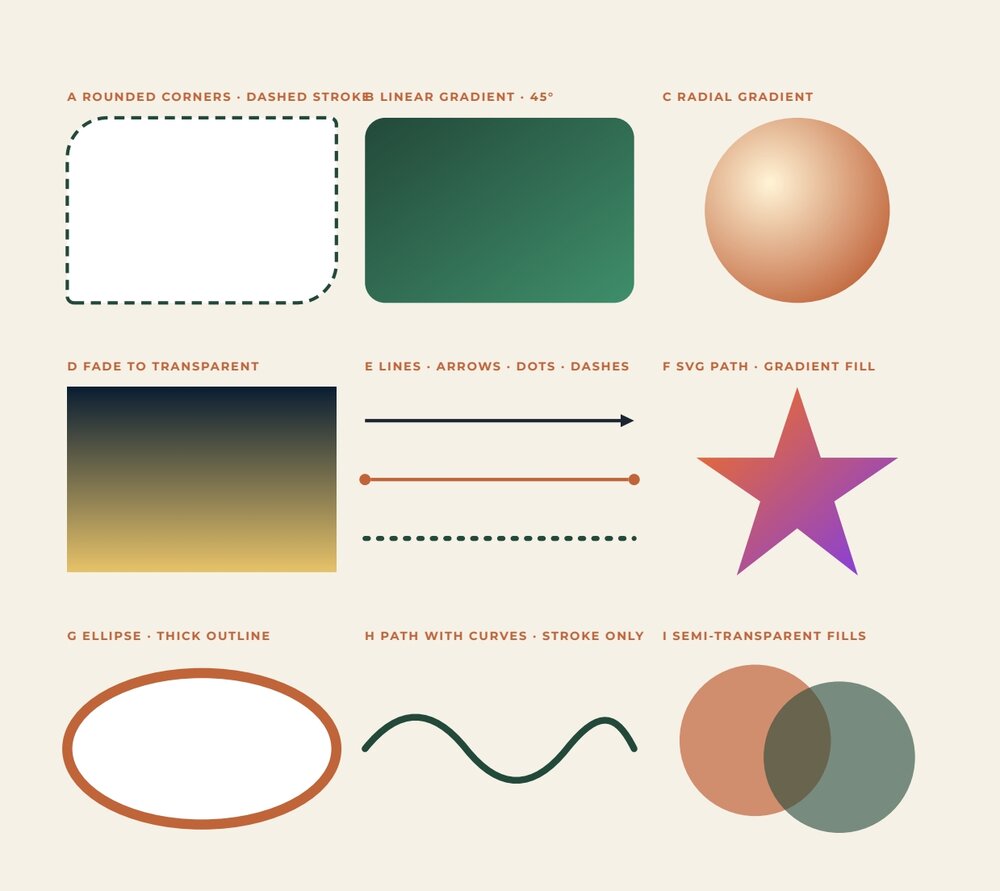
Shapes
Section titled “Shapes”$type |
Geometry |
|---|---|
rectangle |
width, height; rx / ry for equal corners, or cornerRadiusTopLeft, …TopRight, …BottomRight, …BottomLeft |
circle |
radius (its box is 2 × radius) |
ellipse |
rx, ry |
line |
from (x1, y1) to (x2, y2) inside its box; startMarker and endMarker: none, arrow, circle |
path |
pathData: standard SVG path commands M L H V C S Q T A Z, absolute or relative, in the element’s own coordinates |
{ "$type": "path", "id": "5c0def00-0000-4000-8000-000000000101", "name": "Star", "left": 414, "top": 230, "width": 120, "height": 112, "pathData": "M 60 0 L 74 42 L 120 42 L 82 68 L 96 112 L 60 84 L 24 112 L 38 68 L 0 42 L 46 42 Z", "fill": "#c0643a", "fillRule": "non_zero", "fillPaint": { "type": "linear_gradient", "units": "object_bounding_box", "spreadMethod": "pad", "x1": 0, "y1": 0, "x2": 1, "y2": 1, "gradientTransform": [], "stops": [ { "offset": 0, "color": "#f97316", "opacity": 1 }, { "offset": 1, "color": "#7c3aed", "opacity": 1 } ] } }Fill and stroke
Section titled “Fill and stroke”Closed shapes have a fill and a stroke (outline); lines and open paths only a stroke.
| Property | Values |
|---|---|
fill, stroke |
a colour #RRGGBB, or null for none |
fillOpacity, strokeOpacity, opacity |
0–1: the fill, the outline, or the whole element |
strokeWidth |
points |
strokeDashArray |
dash and gap lengths: [6, 4] dashed, [2, 6] with "strokeLineCap": "round" dotted |
strokeLineCap |
butt, round, square — the ends of a line or dash |
strokeLineJoin |
miter, round, bevel — the corners |
paintOrder |
fill_then_stroke (default) or stroke_then_fill, for an outline half-hidden by the fill |
nonScalingStroke |
true keeps the outline’s width when the shape is resized |
Gradients
Section titled “Gradients”fillPaint (and strokePaint) replace the flat colour with a paint:
"type": "linear_gradient"from (x1,y1) to (x2,y2) — with"units": "object_bounding_box"these are fractions of the shape:0,0 → 1,0left to right,0,0 → 0,1top to bottom,0,0 → 1,1diagonal;"type": "radial_gradient"around (cx,cy) with radiusr, and an optional focus (fx,fy) for a light spot;stops: 2 to 32 colours with anoffsetfrom 0 to 1 and, on fills, anopacity— a stop at opacity 0 fades the shape to transparent (lab example D: a dark veil over a photo or a colour that fades out).
Keep fill set to a close colour: it is what older viewers and thumbnails show. A gradient on a stroke must be opaque.
A page background takes the same paint as backgroundPaint (see Images).
In the editor
The tool bar on the left adds rectangles, circles and lines; Open shape library offers ready-made shapes (search, choose, click the page); Draw with pen and Draw freehand make paths. With a shape selected, the bar above the page sets Fill and Stroke: a type (No fill, Solid color, Linear gradient, Radial gradient), colour and opacity, the stroke’s Width, Pattern (Solid, Dashed, Dotted), Ends (Flat, Round, Square), Corners (Sharp, Round, Bevel), Layering and When resizing. The gradient editor has draggable Color stops (double-click the bar to add one), an Angle dial for linear gradients and Center and focus for radial ones. A rectangle’s corner handles set the radius — click one corner handle to change it alone. A line’s Ends can be Arrow or Circle. Outer shadow adds a soft shadow to any element.
SVG artwork
Section titled “SVG artwork”A logo, an icon set, an illustration made elsewhere: import the SVG file. There are two ways, and the choice matters.
| Mode | What you get | Choose it when |
|---|---|---|
editable (default) |
The SVG becomes native groups, paths and texts | You want to change its parts: move a shape, edit a path, restyle a line |
preserved |
One svg_artwork element that keeps the file as it is, with a palette of its colours |
Complex artwork that must stay exactly as designed — a logo, a detailed illustration — recoloured as a whole |
Both stay vector in the PDF and neither is ever turned into pixels. The importer refuses what it cannot keep faithfully
— scripts, external files, embedded bitmaps, filters, text on paths — with a specific svg_import_* error instead of
simplifying silently. Limits: 10 MB; 500 drawable objects in editable mode, 2,000 in preserved mode.
An SVG is imported, not written into the document: the importer cleans it and stores it. Through the API:
POST /api/v1/design-templates/{tpl_id}/draft/svg-imports{ "page_id": "<page id>", "name": "Leaf mark", "svg": "<svg viewBox=\"0 0 120 120\">…</svg>", "left": 430, "top": 420, "width": 90, "height": 90, "mode": "preserved" }MCP: import_design_template_svg. In a document you write, an imported artwork appears as an svg_artwork element
that points to its stored file — copy it from a document that has it, do not invent its src.
Recolouring artwork
Section titled “Recolouring artwork”Every imported artwork has a palette: each original colour, its current colour and how many times it is used. Change one colour and every use of it changes — fills, outlines, gradient stops — without touching the geometry; reset one colour or all of them at any time.
GET /api/v1/design-templates/{tpl_id}/draft/elements/{element_id}/palettePOST /api/v1/design-templates/{tpl_id}/draft/elements/{element_id}/palette-replacements{ "source_color": "#e9c46a", "target_color": "#c0643a" }MCP: get_design_template with view palette, and edit_design_template_palette. This is how one illustration serves
several brands.
To recolour artwork from data — each brand’s colour at render time — use native shapes with colour fields instead (see Conditions, links and formats): a palette is part of the design, a colour field is part of the data.
In the editor
Choose an SVG file with the Add image tool: the editor asks How do you want to import this SVG? — Editable elements or Keep artwork — and recommends one. With the artwork selected, Artwork colors lists its palette: change a colour, or Reset all artwork colors.
An SVG as an image
Section titled “An SVG as an image”An SVG can also arrive as the value of an image field or as an image’s src (an HTTPS URL, a storage path or a
data:image/svg+xml URI): it prints as vectors at its own proportions, with no palette. It is the way to place a badge
or a chart that a workflow generates (see Images).
Recipes
Section titled “Recipes”| You need | Do |
|---|---|
| A header band | A full-width rectangle in the ink or brand colour, first in the page’s elements |
| A card | A rectangle with rx/ry 8–16 and a white fill — or, better, a flowing Layout with a background layer |
| A divider | A line 0.5–1 pt in a muted colour |
| A “sale” burst or a sticker | A path star or circle with a gradient, a text on top |
| A photo that fades into the page | A rectangle over the photo with a linear gradient from the page colour at opacity 0 to opacity 1 |
| Arrows in a diagram | line with "endMarker": "arrow"; for curves, a path |
| A brand logo in SVG | Import it preserved; recolour with the palette per brand variant |
| Icons you will restyle | Import them editable |
Checklist
Section titled “Checklist”- Shapes carry the structure — bands, cards, rules — in the palette of the template.
- Gradients have a flat
fillfallback close to their colours. - Logos and complex artwork are imported
preserved; icons to restyleeditable. - Artwork for several brands is recoloured through its palette, or built from shapes with colour fields.