

Conditions, links and number formats
A good template is not one document but a family of them: the same product sheet for every product, every brand, every market. The data decides which badge appears, which colour the band takes, how the price is written and where the link points. This page shows the four tools for that — conditions, yes/no and colour fields, number formats and links — each in the editor and in the document.
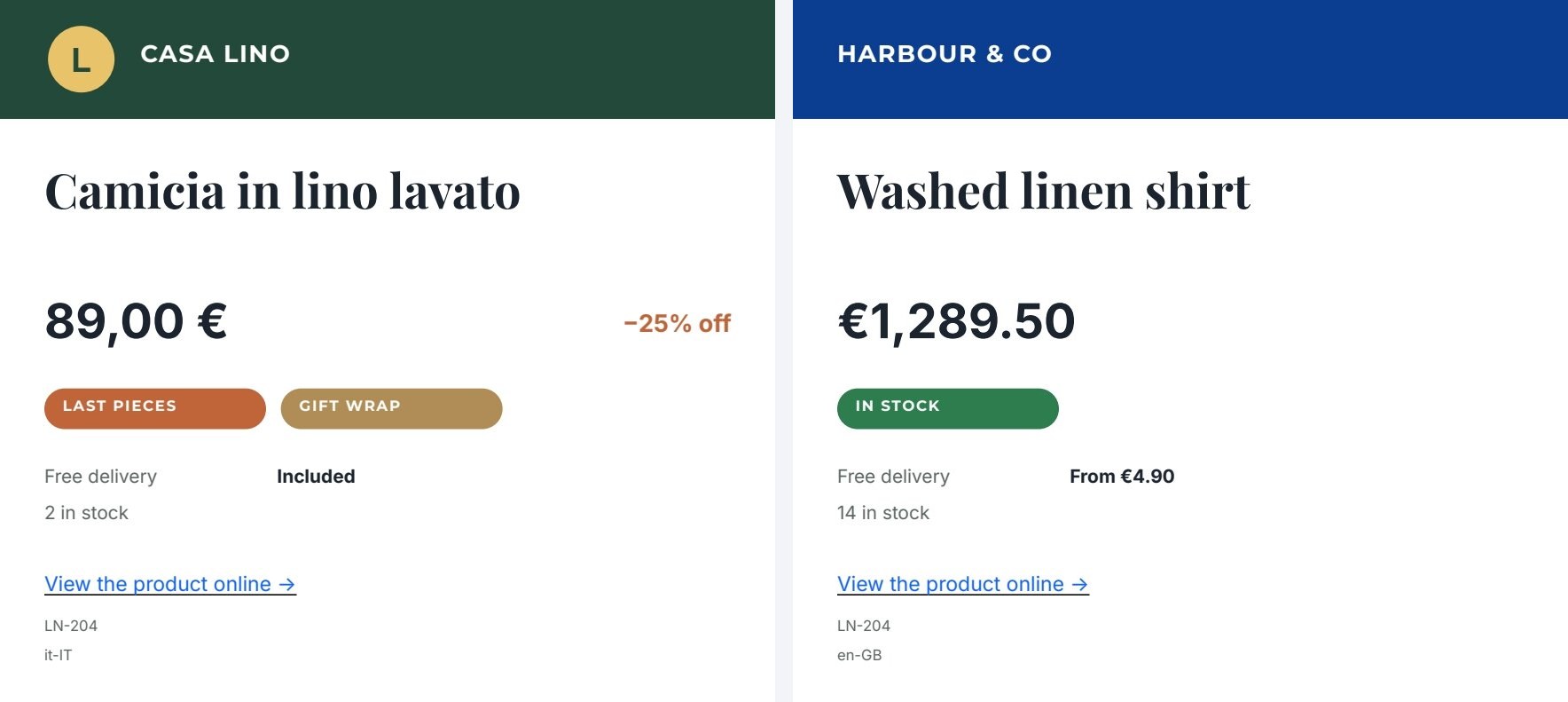
The variants lab is one product sheet with two sample sets: an Italian brand with a logo, a discount and two pieces left; a British brand without a logo, no discount and plenty in stock. Nothing else differs.
Conditions: show an element only when the data says so
Section titled “Conditions: show an element only when the data says so”Any element — a text, an image, a shape, a group, a Layout, a list — can carry a condition. When it does not hold,
the element is not drawn, and inside a flowing Layout it leaves no gap.
| Operator | Holds when |
|---|---|
not_empty |
the field has a value (a non-empty text, a list with items) |
equals |
the value equals literal ("true", "0", "premium") |
greater_than, greater_than_or_equal, less_than, less_than_or_equal |
the number compares with the numeric literal |
not |
its one condition does not hold |
all, any |
all, or at least one, of its conditions hold |
A condition reads a template field by code ("placeholderCode": "stock"), or a key of the current item inside a
list row ("item.stock"). Conditions nest up to 8 levels. Three badges on the same number — one per range:
{ "operator": "greater_than", "placeholderCode": "stock", "literal": "3" }{ "operator": "all", "conditions": [ { "operator": "greater_than", "placeholderCode": "stock", "literal": "0" }, { "operator": "less_than_or_equal", "placeholderCode": "stock", "literal": "3" } ] }{ "operator": "equals", "placeholderCode": "stock", "literal": "0" }The lab’s header is a horizontal Layout holding the logo and the brand name; the logo has
{ "operator": "not_empty", "placeholderCode": "logo" }, so without a logo the name moves to the left edge.
- Put optional blocks inside a flowing Layout so that a hidden block takes no space (see Flowing layouts).
- A condition on a field that is not in the template is rejected when the document is saved.
- An empty list can show a message:
{ "operator": "not", "conditions": [ { "operator": "not_empty", "placeholderCode": "items" } ] }.
In the editor
Select the element and open the Fields panel: When is this element visible? offers Always show it,
Depends on each field, and — in a list row — A new value of each row…. Then choose the rule: Has a value,
Equals a value, or for numbers Greater than, Greater than or equal to, Less than, Less than or equal to.
The panel says whether the element is shown or hidden with the current sample set. Combined rules (all, any,
not) are written through the API or by an agent; the editor shows them as Combined rule.
Yes/no fields
Section titled “Yes/no fields”A boolean field receives true or false and works in one of two ways, chosen in its format:
- As a label, on a text: it prints
trueLabelorfalseLabel(default Yes / No). The lab’s delivery line prints Included or From €4.90:
"placeholder": { "id": "5c0deaaa-0000-4000-8000-000000000101", "name": "Free delivery", "code": "free_delivery", "placeholderType": "boolean", "required": false, "format": { "trueLabel": "Included", "falseLabel": "From €4.90" } }- As visibility, on a text or a container (a group, a Layout):
"format": { "booleanMode": "visibility" }shows the element only when the value istrue— the GIFT WRAP badge of the lab. It behaves like a condition: a hidden child of a flowing Layout takes no space. Without a value, the field’sdefaultValuedecides; without a default, the element shows.
Use a yes/no field when the data has a real yes/no fact (gift wrap available, sold out); use a condition when the decision derives from another value (stock is zero).
Colour fields
Section titled “Colour fields”A color field on a text or a shape paints it with the colour in the data (#RRGGBB); format.colorTarget chooses
fill (default) or stroke. The lab’s band takes each brand’s colour:
{ "$type": "rectangle", "id": "5c0deaaa-0000-4000-8000-000000000102", "name": "Brand band", "left": 0, "top": 0, "width": 420, "height": 64, "fill": "#23493a", "placeholder": { "id": "5c0deaaa-0000-4000-8000-000000000103", "name": "Brand colour", "code": "brand_color", "placeholderType": "color", "required": false, "format": { "colorTarget": "fill" }, "description": "The brand colour, #RRGGBB." } }The drawn fill is the colour shown when no value arrives. Choose text colours that read on every brand colour the
template may receive — white on dark brand colours, or ink on a light band.
Number formats per market
Section titled “Number formats per market”A number field prints through its format (all options in Fields and data).
To serve several markets with one template, take the language from the data: "locale": "{language}" reads the
field language (it-IT, en-GB, de-CH…). The lab’s price:
"format": { "locale": "{language}", "numberStyle": "currency", "currency": "EUR", "currencyDisplay": "symbol" }prints 89,00 € for it-IT and €1,289.50 for en-GB — separators, decimals and the position of the symbol follow
the language. A discount of 0.25 with "numberStyle": "percent", "prefix": "−" and "suffix": " off" prints
−25% off.
- The currency is part of the format, not of the data: a template that sells in euros and pounds needs one price
text per currency, each with a condition on a
currencyfield. - Always write
currencyDisplayin a currency format — without it the price prints asEUR 89.00(see Fields and data). - Send numbers as numbers (
89,0.25), never as formatted text.
In the editor
Make a text a placeholder with Value type Number: the dialog shows Number format — Style (Number, Price (currency), Percentage), Language (a fixed language, or From the data (key “language”)), Currency code and Shown as (Symbol (€) or Code (EUR)), Decimals at least / at most, Thousands separator, Sign, Negatives, and text Before the number and After the number. Yes/no and colour fields are chosen in the same dialog with their Value type.
Any element can be a link in the PDF: a text, a button made of a shape and a text, a logo, a product photo.
"link": { "href": "https://shop.example.com/{language}/p/{sku}", "description": "Open the product page" }- Schemes:
https,http,mailto,tel—mailto:orders@example.com,tel:+390612345678. {code}inserts a field’s value, URL-encoded;{item.key}a key of the current list item. A link outside a list can read only fields the template has; a link in a row may read item keys the row does not print.- A link that resolves to nothing usable is left out and reported.
descriptionis read by screen readers. - Links exist in the PDF only: page images are not clickable, and print PDFs (PDF/X-4) omit them.
In the editor
Select the element; in the Fields panel, Link takes the Address — Insert a field adds {code} or
{item.key} — and What it opens, the description. Remove link removes it.
Recipes
Section titled “Recipes”| You need | Do |
|---|---|
| A badge on some products only | A condition on a field or item key; the badge inside a flowing Layout |
| Different badges by quantity | One element per range, each with its numeric condition |
| An optional logo | An image field with not_empty; the header as a horizontal Layout |
| The same template for several brands | Colour fields for bands and accents, an image field for the logo, a text field for the name |
| The same template for several countries | "locale": "{language}" on every number, texts translated in the data |
| A “free delivery” line | A yes/no field with trueLabel and falseLabel |
| A “buy now” button | A rounded rectangle and a text in a group, with the link on the group’s elements |
| A way to reach the product from paper | A QR Code node (image/code) with the product link into a square image field; on screen, a link with {sku} in the address |
Checklist
Section titled “Checklist”- Every optional element has a condition, and sits where hiding it leaves no hole.
- Every sample set exercises a different branch: with and without logo, each badge, each market.
- Every number is sent as a number and formatted by the template; currency formats have
currencyDisplay. - Brand colours keep text readable on every colour the data can bring.
- Every link resolves with every sample set, and the PDF opens the right page.